My digital employees
Maintain personal agent roles; type + in chat to switch.
What the platform offers and how to use it in the workbench. Usage only — no technical internals.
After sign-in, the workbench covers personal features; enterprise adds approvals and governance.
Assign work in natural language and see what the agent did, step by step.
Two common patterns in the composer:
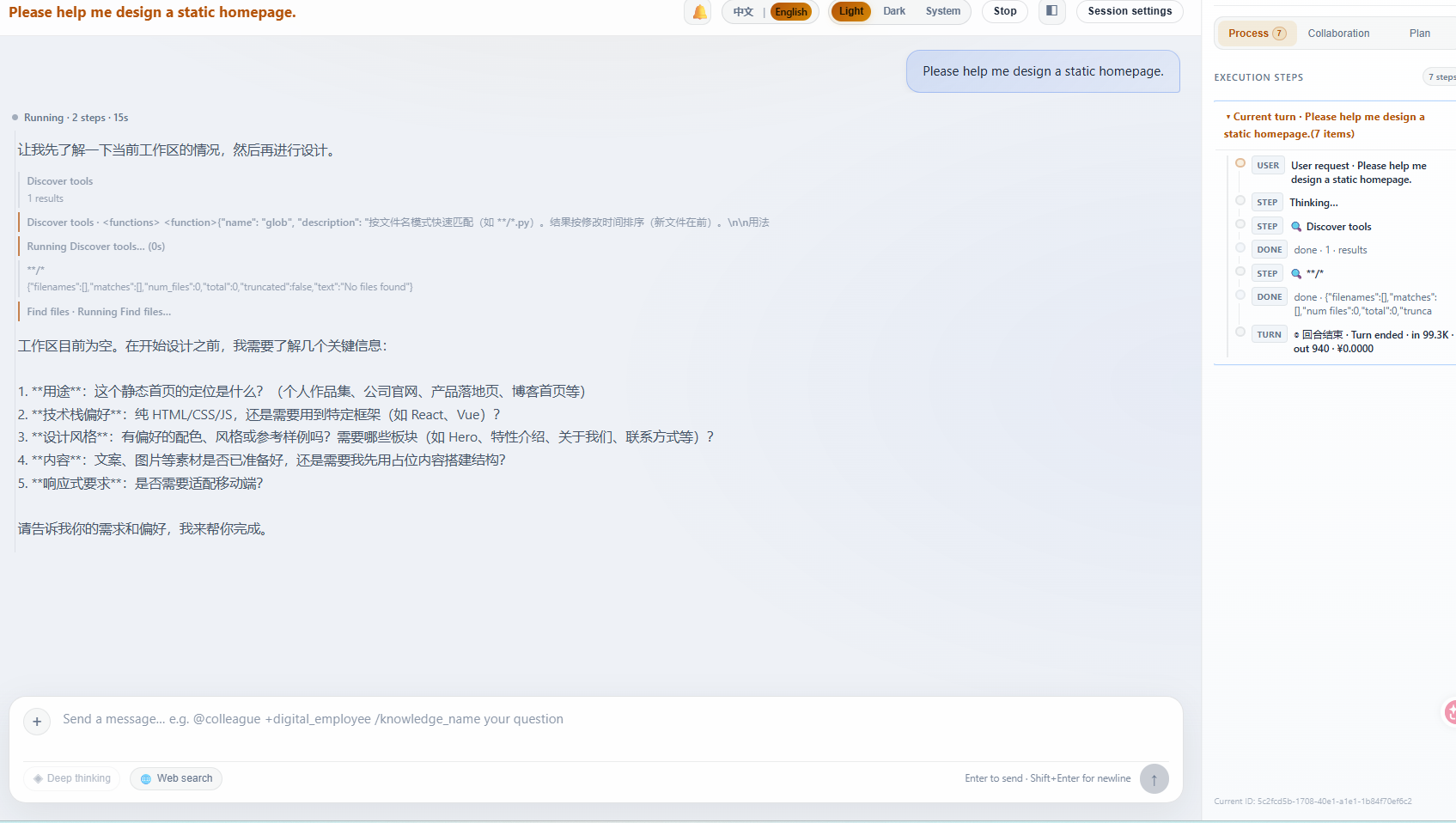
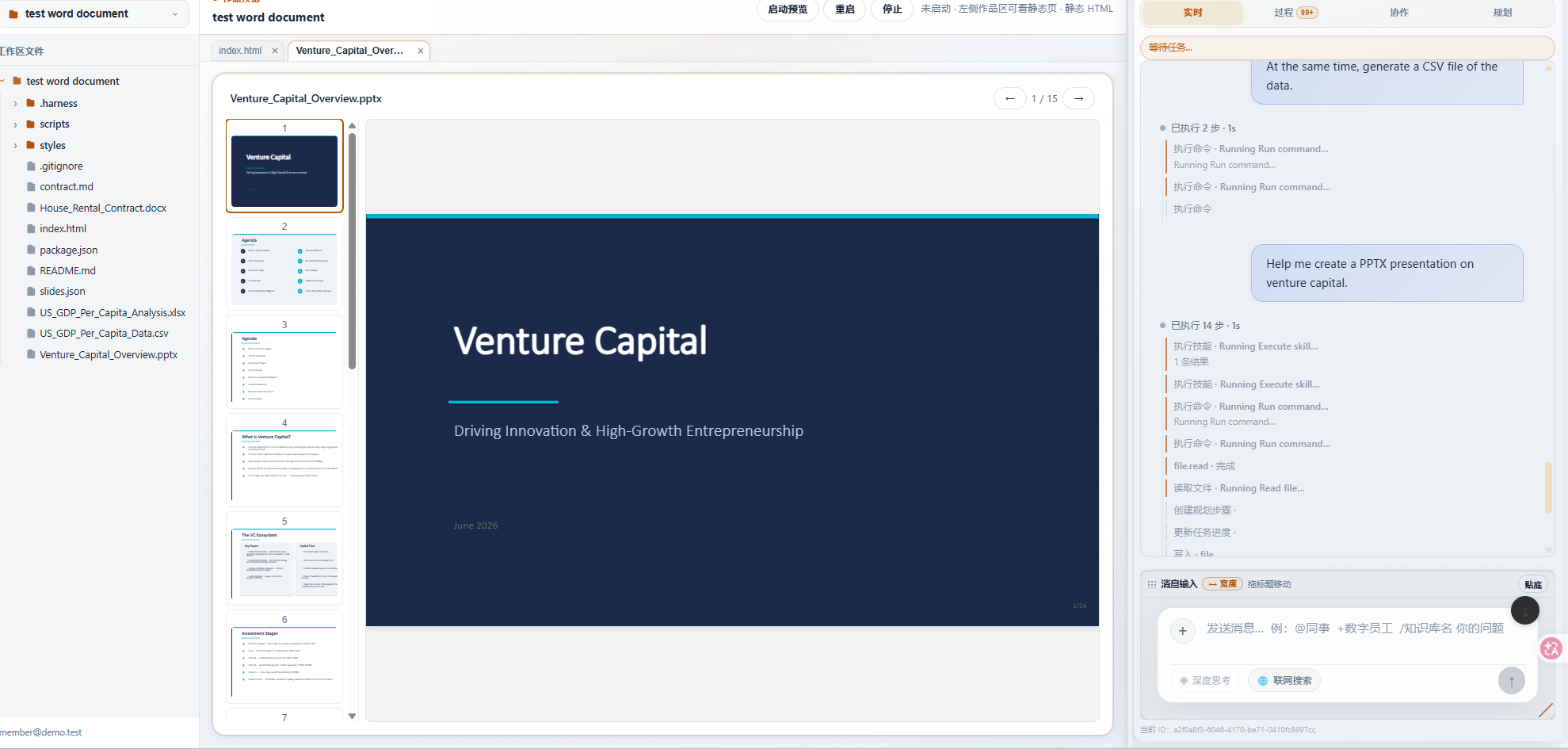
Keep an entire job in a project folder and preview exports in the artifact panel.
Pick by deliverable:
Open the artifact panel to preview docx, xlsx, pptx, or web builds before download or share.
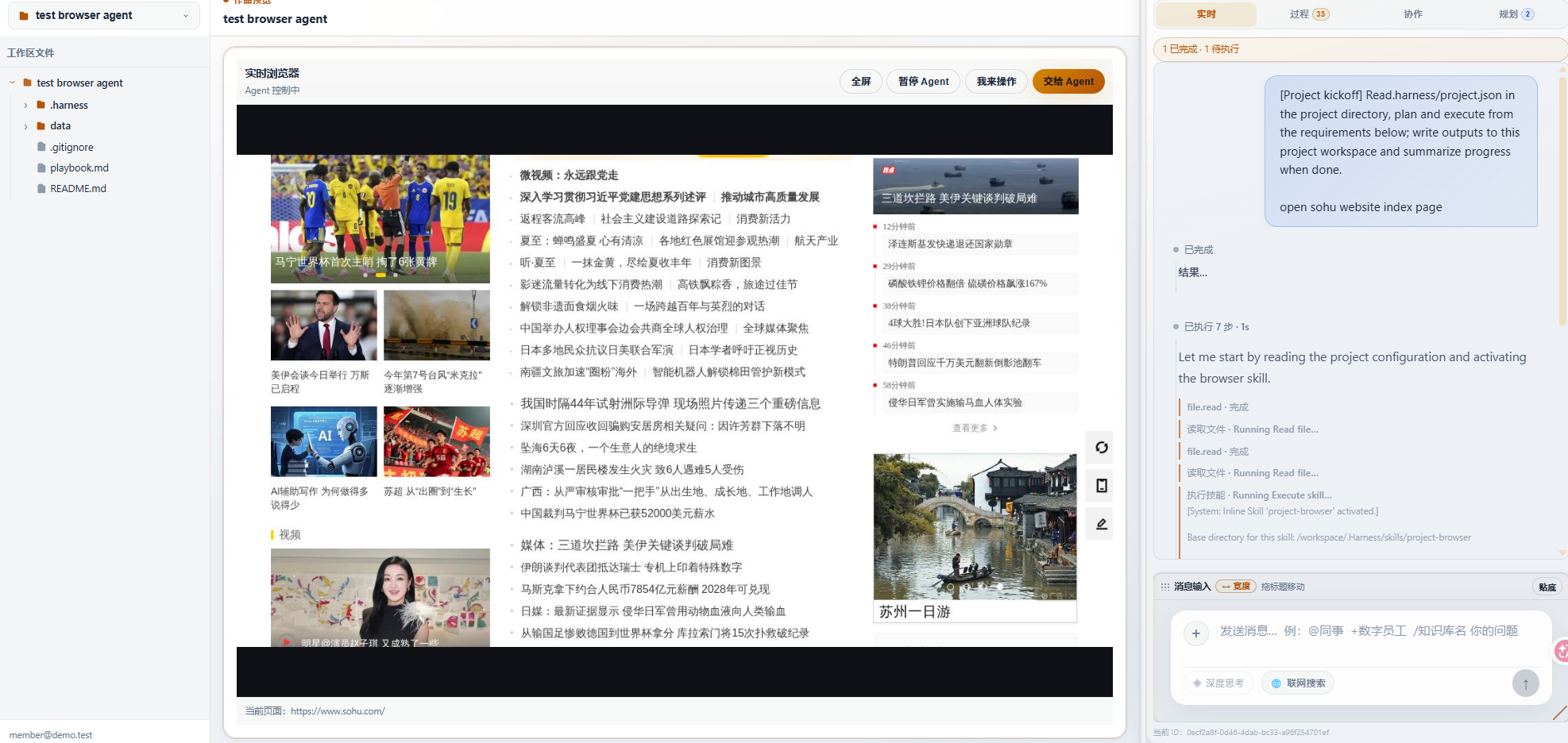
For legacy web UIs without APIs.
Bank portals, legacy OA, supplier sites without APIs.
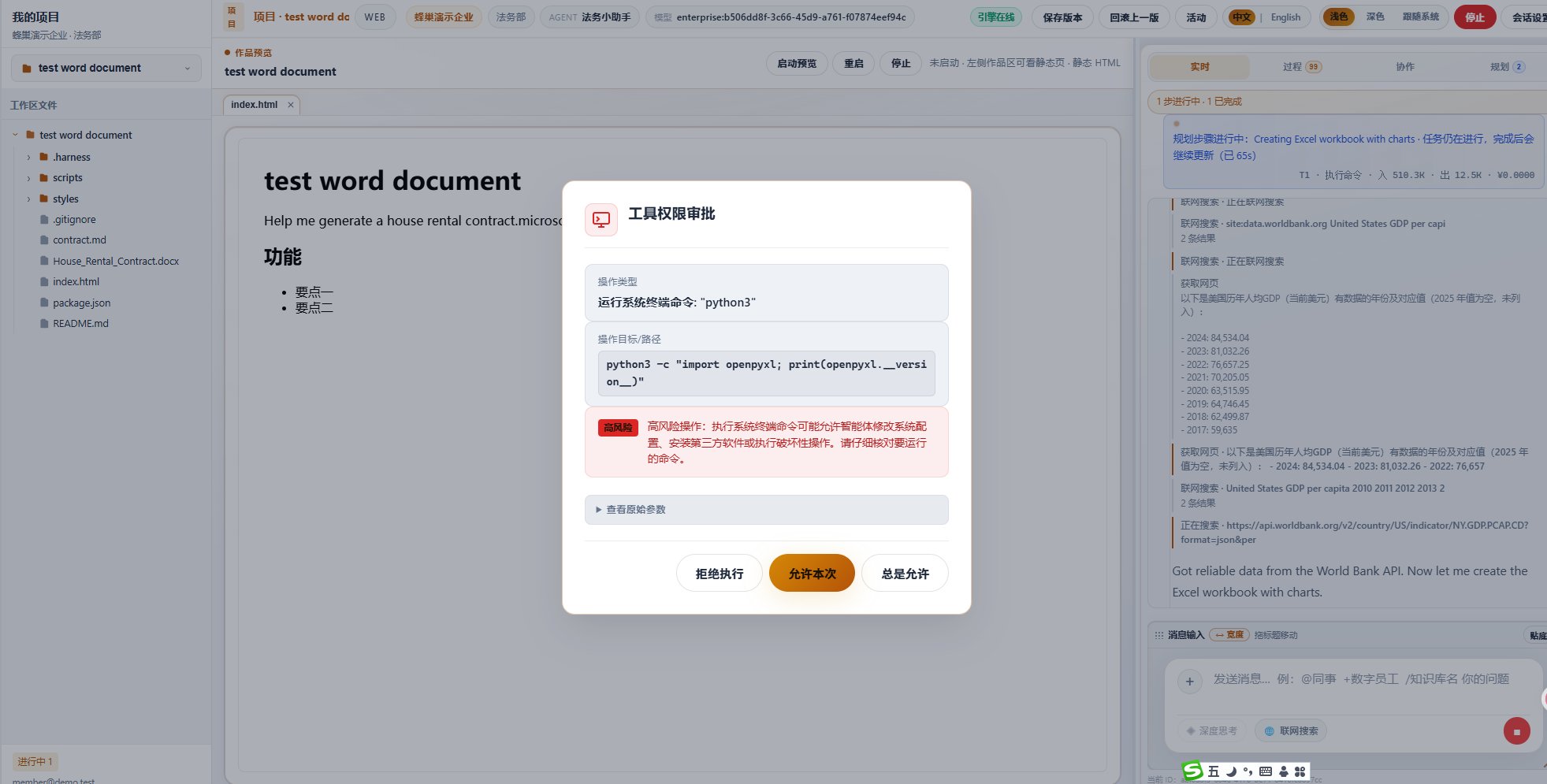
Connect AI execution with human approval and IM notifications.
Enterprise policies can require approval for email, payments, etc.:
With WeCom or similar connected, colleagues get @ or approval alerts on mobile and jump back to the project.
My space on the left holds docs, project files, and agent output — personal, department, or enterprise scope.
Upload reference files to the right scope before creating a project; mount them in chat or projects so the agent can use them.
Configure your agents and account in Settings; enterprise members also get directory and shared Skill catalog.
Maintain personal agent roles; type + in chat to switch.
Manage personal Skills that define specialized work.
Install plugin bundles to enable multiple capabilities at once.
Connect external tool accounts for lookups, notifications, etc.
Set recurring reminders or jobs for digital employees.
Pick enterprise-assigned models or configure personal keys.
Choose how you get approval and collaboration alerts; bind personal IM.
Find colleagues for @; browse admin-published enterprise Skill catalog.
Enterprise admins use a separate console to configure org, shared capabilities, and quotas; employees use those settings in the daily workbench.
Console vs. workbench: admins publish and govern here; employees chat and deliver there. Dept admins usually manage only their department’s resources and digital employees.
Maintain org structure, invite employees, and onboard personal accounts into the enterprise.
Configure how employees reach the portal and handle demo lead forms from the marketing site.
Publish capabilities, files, and data for all or a department — employees pick them up in the workbench.
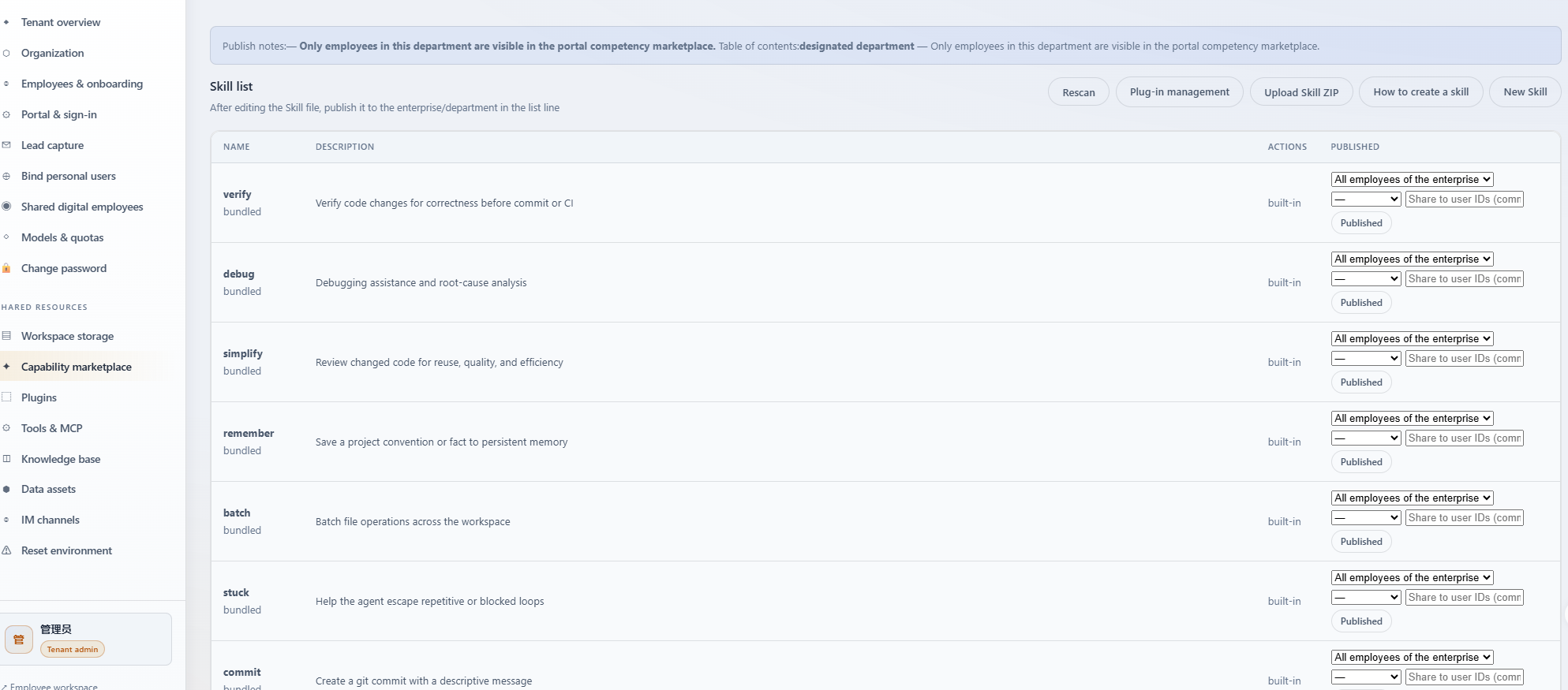
Publish enterprise or department Skills for specialized workflows.
The Skill catalog is a central marketplace for pre-configured and custom workflows. Admins can publish structured skills containing multi-step sequences. Members can enable them in one click, allowing the Agent to automatically execute tasks like daily report drafting, formatting, or data cross-merging without writing any code.
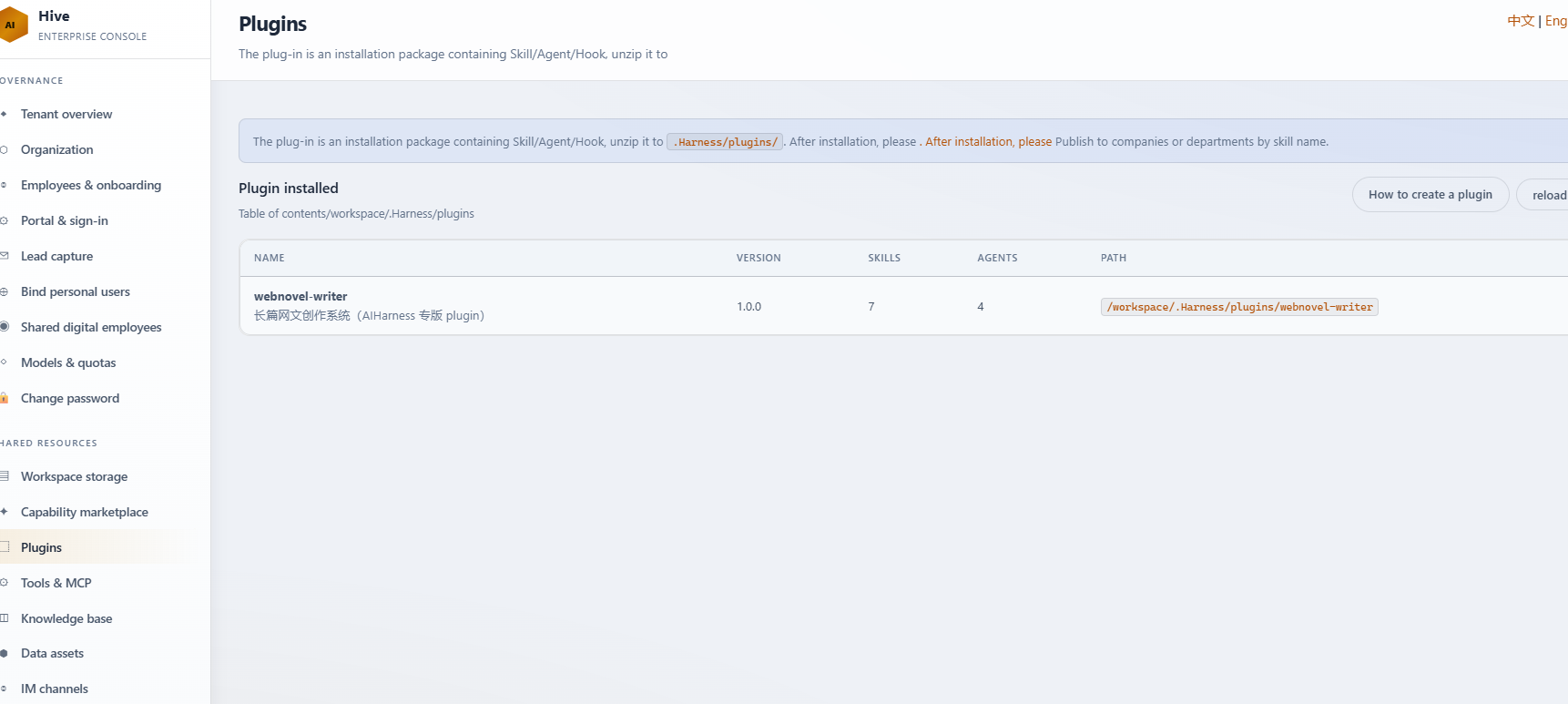
List plugin bundles so employees enable multiple capabilities at once.
Plugins provide plug-and-play extensions for agent capabilities. Admins can upload and assign plugin bundles to departments, immediately unlocking advanced micro-actions. For example, enabling the Excel styling plugin allows the Agent to generate beautifully formatted pivot tables, while the PDF rendering plugin outputs professional-grade documents instantly.
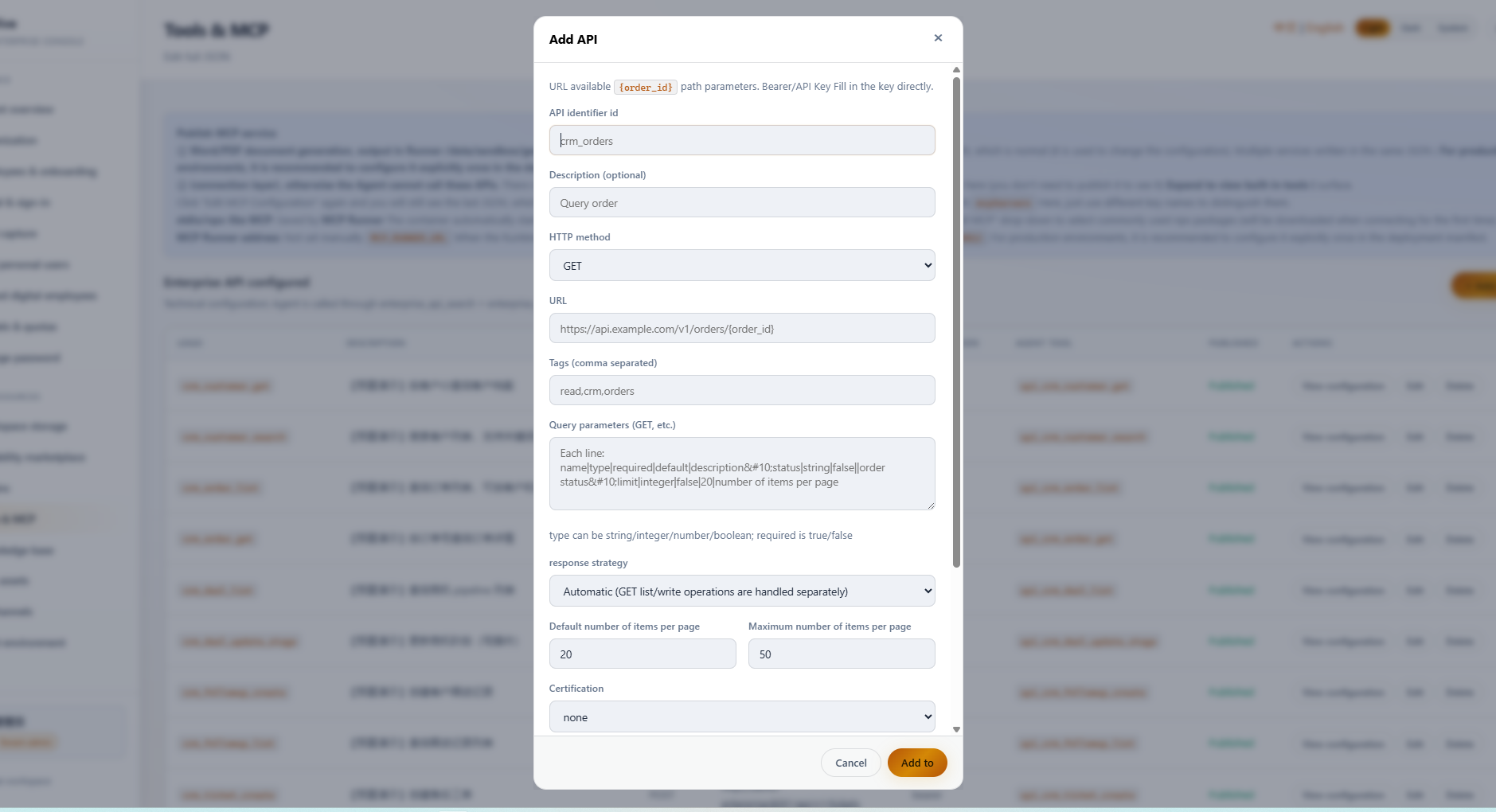
Configure enterprise tool accounts for agents under policy.
Tool connections bridge the gap, allowing the Agent to interact directly with internal systems. Admins can securely connect enterprise accounts (such as ERP logins, mail servers, CRM interfaces, and notification channels). The Agent runs operations within policy rules and sandboxed environments, with human-in-the-loop approvals for sensitive actions to keep business operations secure.
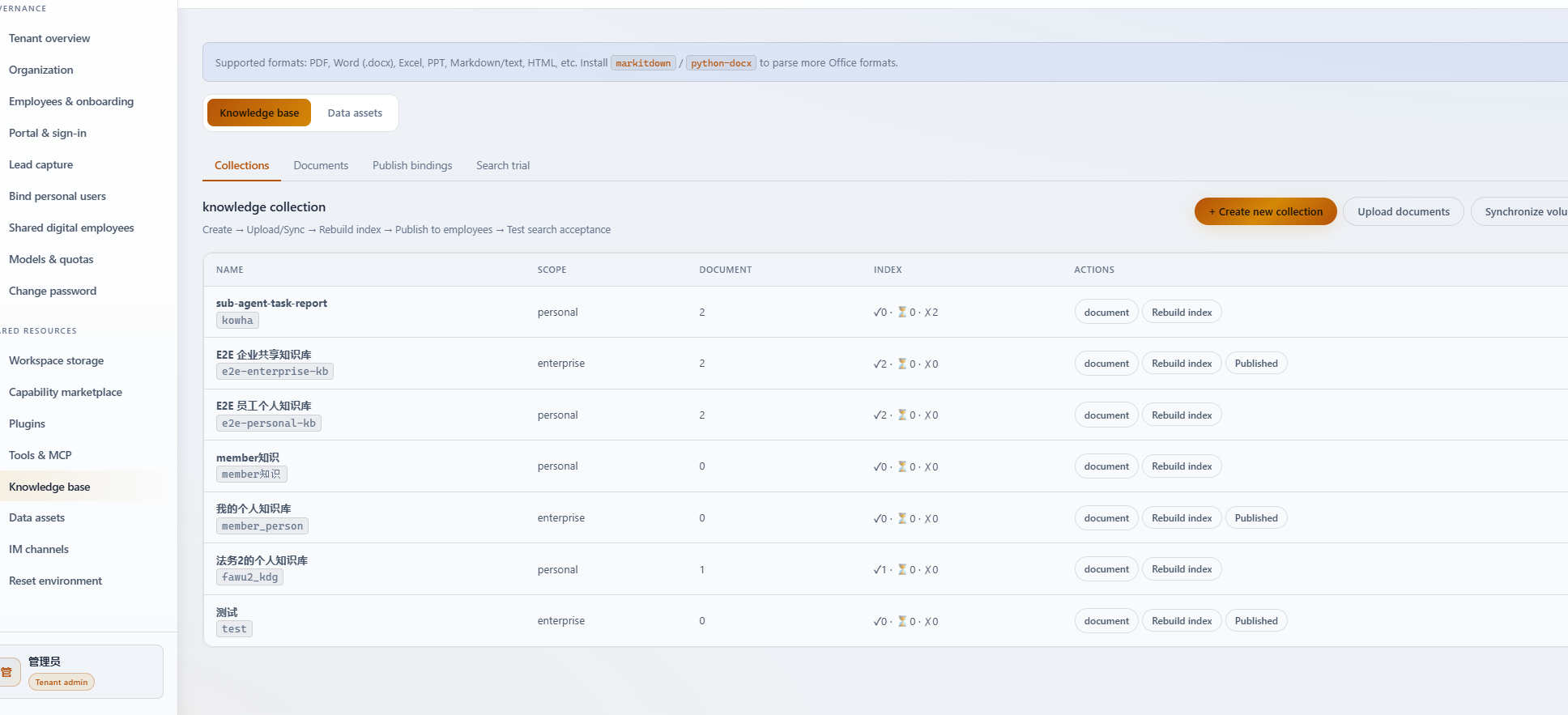
Upload policies and manuals for org-wide or dept reference.
Knowledge bases eliminate hallucinations, serving as the source of truth for your Agents. Upload corporate handbooks, product documentation, service playbooks, and standard operating procedures (SOPs). The system parses and indexes these files, enabling the Agent to retrieve, reference, and generate highly accurate answers for both team members and clients.
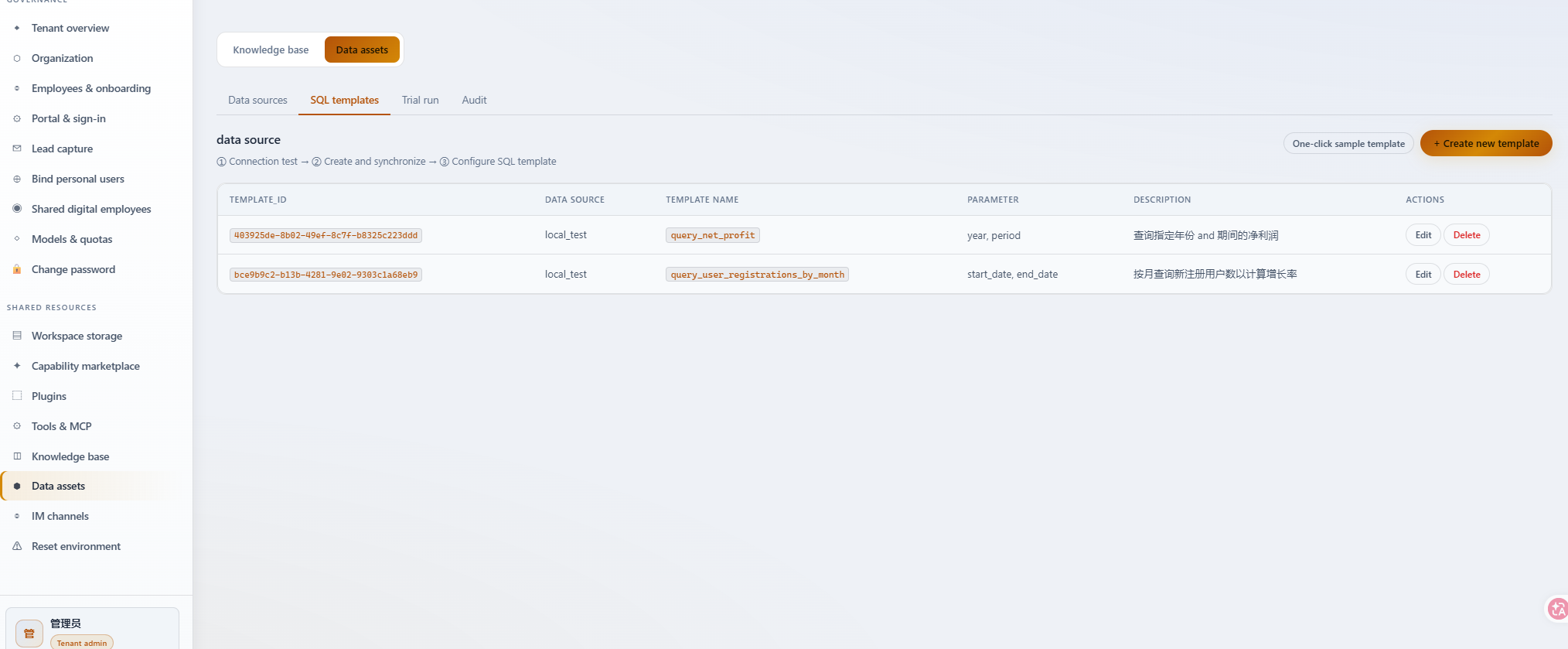
Publish structured tables for reconciliation, analysis, etc.
Data assets manage structured datasets. Admins can publish database views, region targets, or CSV tables. The Agent accesses these assets directly to perform pivot analysis, financial reconciliation, and generate dynamic trend charts, completing time-consuming audits and reports in minutes instead of days.
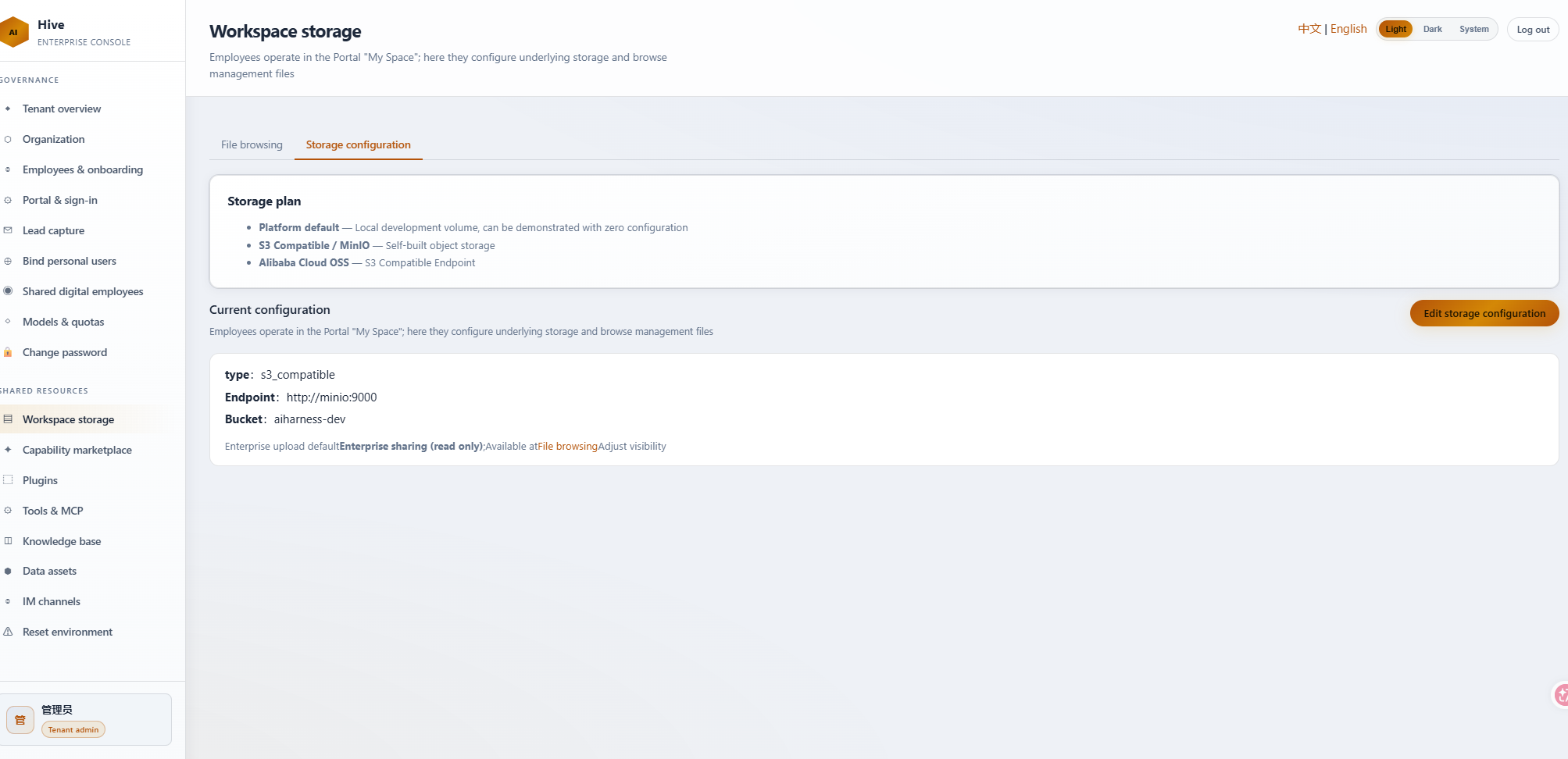
Manage enterprise and department shared folders and access.
Workspace storage manages the folders and file trees shared across the company or specific departments. Admins configure directory access and permissions. All reference materials and Agent-generated project deliverables are stored securely here. Backed by built-in Git versioning, users can review checkpoints, compare changes, and rollback files easily.
Configure shared digital employee templates and LLM usage quotas.
Connect WeCom, Feishu, DingTalk, etc. so approvals and @ alerts reach mobile.
Once connected, @ messages and pending approvals push to IM; tap the link to return to the workbench.